

Countdown Widget
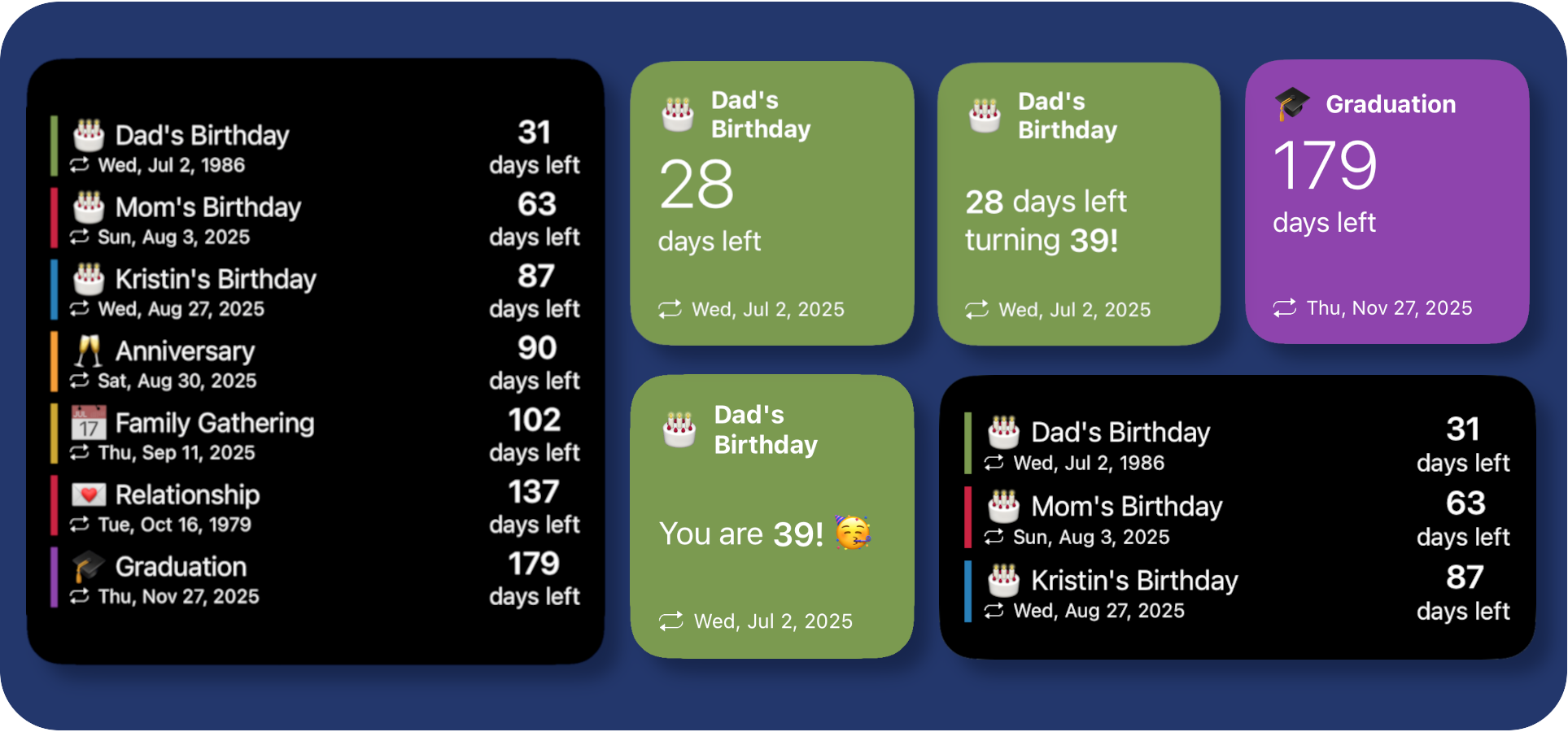
A lightweight and customizable countdown widget built using the Scriptable app, powered by Google Sheets. It helps you track upcoming events like birthdays, anniversaries, or deadlines—right from your iOS home screen.
Mention: Minimal design widget https://jvscholz.com/blog/countdown.html if the links dosent work look in the backup foolder
✨ Features
🗓️ Dynamic Countdown: Displays days remaining to an event.
🎂 Age Display: Automatically shows age or anniversary years.
📅 Google Sheets Integration: Events loaded from your own sheet.
🎨 Color Customization: Assign vibrant colors and icons per event.
⚙️ Flexible Layouts: Adaptable to different widget sizes and views.
🚀 How It Works
The widget fetches events from a Google Sheets Web App link and automatically displays the nearest upcoming event(s). Depending on widget size and provided parameters, it can show:
A single event (Small widget)
A grid of events (use
colparameter)A list of upcoming events (default for Medium and Large widgets)
🔧 Setup
1. Prepare Google Sheets
Create a sheet like this:
Mom
2003-09-25
🎂
#2980b9
Dad
1975-07-01
🎂
#F79F39
Ensure dates are formatted as
YYYY-MM-DD.
2. Turn Sheet into Web App
Go to Extensions > Apps Script.
Paste this code:
Deploy > New Deployment
Select type Web app
Set access to Anyone
Click Deploy, then copy the Web App URL
3. Link Scriptable Script
In your countdown.js file, update:
Then save the script in Scriptable.
4. Load Repeat Icon
If you see a ❗ warning or square character instead of the repeat icon, it's likely because the required icon font isn't available. To fix this:
Download the
repeat.pngicon from the repository’sassetsfolder (or use your own).Save it inside your
iCloud Drive > Scriptable > .assetsfolder.Ensure the file is named exactly:
repeat.pngThe widget will automatically load this icon when it detects a recurring event.
🔧 Tip: You can replace
repeat.pngwith any custom icon (e.g., circular arrows) — just make sure it’s 60x60 px and in PNG format.
5. Add Widget
Download the Scriptable app from the App Store.
Option A – Upload Method
Download the
CountdownWidget.jsscript from this repository.Move it into the
Scriptablefolder in your iCloud Drive (this folder is created automatically after installing the Scriptable app).
Option B – Manual Method
Open the Scriptable app.
Tap the + icon to create a new script.
Copy and paste the script content from this repo manually.
Name the script however you'd like (e.g.,
Countdown Widget).
Long-press anywhere on your iOS Home Screen to enter "jiggle mode", tap the + button on the top-left, and scroll to add a Scriptable widget.
Choose the desired widget size (Small/Medium/Large) and tap [+ Add Widget].
Long-press the newly added widget, tap Edit Widget ⓘ, and configure the script and parameter values as described see below.
⚙️ Configure Parameters
Use the following options when editing the widget:
Script
Choose
Widget Name (e.g., Countdown Widget)
While Interacting (optional)
Open App
Run Script
Here's a Screenshot of widget's config panal

Widget Parameter Notes:
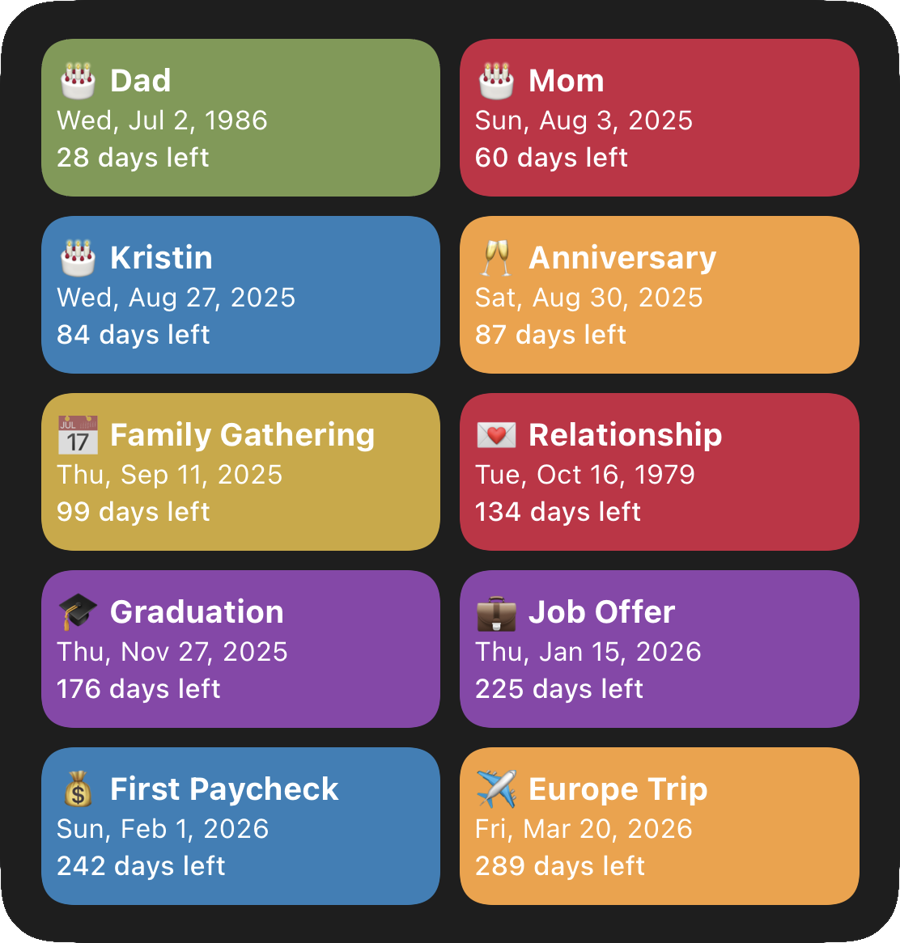
col parameter works only for Medium and Large widgets.
Medium widget shows top 4 events.
Large widget shows top 10 events.
If no col is used, widget defaults to list view:
Medium: top 3 events.
Large: top 7 events.
In small widgets:
Type any name from your Google Sheet (e.g.,
mom,dad) to show that person's event.If the emoji is 🎂, it will automatically append
's Birthday.If it's 🥂, it appends
's Anniversary.It only supports these two emojis, but you can always add more to your liking by updating the
titleSuffixesarray.You can also use numeric indexes (e.g.,
1,2) to select an upcoming event by position.Default is the most upcoming event.
Using
ageshows the years passed since the event date — useful for birthdays or anniversaries. If today is the event date, countdown is hidden and only age is shown.
Pagination (pg):
Use
pg1,pg2,pg3, etc., to display multiple pages of events.In list view (default):
Medium widget: each page displays 3 events.
Large widget: each page displays 7 events.
In grid view (
col):Medium widget: each page displays 4 events.
Large widget: each page displays 10 events.
Example:
pg2: shows the second page of events.col,pg3: shows the third page of events in grid view.
Offline Fallback & Regular Sync:
Events are automatically cached locally in the
.cachefolder.Widget gracefully falls back to cached data when offline.
Data automatically updates daily at 2:00 AM.
📷 Screenshots
Small Widgets


Medium Widgets


Large Widgets

🙌 Feedback
Have feature ideas or issues? DM me on Instagram or email me at rushiofficial1205@gmail.com.
Widgets shouldn’t be limited to timers—I’d love to build tools that help you passively learn, reflect, or stay organized. If you have a unique concept in mind, I’d love to collaborate.
📜 License
This project is licensed under the MIT License.
Feel free to fork, build upon, and remix with attribution.
Enjoy using this widget ~ RP
Last updated